


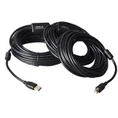


After going through USB1.0, USB1.1, USB2.0 and USB3.0, the USB interface has ushered in the most popular USB3.2. The transmission rate of the USB interface has been increasing, and along with the increase in transmission rate, the naming complexity of the interface standard has also increased. Take USB3.1 for example, it is divided into USB3.1 Gen1 and USB3.1 Gen2, which makes many users incomprehensible and easily confused. Everyone probably has this question: They are all USB3.1 standard interfaces, why do they have to be divided like this, what is the difference between USB3.1 Gen1 and Gen2? The following article shares how to distinguish USB interfaces. First of all, let us understand the transmission speed of the USB interface, because the difference in the name of the USB interface is largely determined by the transmission speed of the USB. The figure below shows the transmission speed of USB interfaces of various specifications.

After understanding the transmission speed of USB interfaces of different specifications, we can identify USB from the interface. The interface here refers to the physical interface. Type-A in USB 2.0:
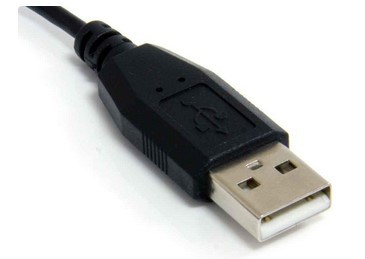
The above is the most common USB Type-A interface, which we generally call USB interface. Type-B in USB 2.0

The above is USB 2.0 Type-B, which is commonly used in data cables for connecting printers to computers. Usually one end is Type-B to connect to the printer, and the other end is Type-A to connect to the computer.

The above one is also a USB TYPE-A interface, but because of the introduction of the USB 3.0 standard, in order to distinguish USB 2.0, the color of the interface is usually blue. So if your motherboard back panel has two USB interfaces, black and blue, it usually means that the black one is USB2.0, and the blue one is USB3.0 or higher standard.

USB 3.0 Type-B is commonly found in USB 3.0 HUBs and USB 3.0 mobile hard disk enclosures.

This is USB Type-C, which is convenient and easy to use. It can be plugged in either direction. However, one thing to note here is that USB Type-C is just a physical interface, which does not equal its transmission speed. Currently, devices on the market that use USB Type-C interfaces generally use at least USB3.1 Gen1 transmission standards.

Motherboard interface notes: The black USB interface is a USB 2.0 Type-A interface, with a data transmission rate of 480Mbps; the blue USB interface is a USB 3.2 Gen1 Type-A interface, with a data transmission rate of 10Gbps; the red USB interface of this motherboard is a USB 3.2 Gen2 Type-A interface, with a data transmission rate of 10Gbps; the Type-C interface of this motherboard is a USB 3.2 Gen2 Type-C interface, with a data transmission rate of 10Gbps.

Motherboard Notes: The blue USB interface is a USB 3.1 Gen1 Type-A interface with a data transmission rate of 5Gbps; the green USB interface is a USB 3.1 Gen2 Type-A interface with a data transmission rate of 10Gbps. It can be found that the blue interface may be a USB 3.1 Gen1 Type-A interface or a USB 3.2 Gen1 Type-A interface, and the transmission speeds between the two are also different. So how to identify whether the motherboard is a USB3.1 or USB3.2 interface? It is recommended to check the product's official website for instructions and then check the transmission data according to the table to confirm. The above is the transmission speed and identification method of the USB interface shared by everyone. I hope this article can help everyone.